 Tokmon
Your Claude Code limits and spend, in the menu bar.
Tokmon is a Mac menu bar app. On a Pro or Max plan it shows your 5-hour and weekly limits. On API pricing it shows what you have spent today and this month. It can also send the numbers to a small desk display, which is a prototype for now.
Version 0.2.0. macOS 14 or later, Apple silicon and Intel. Needs Claude Code 2.1.80 or later.


The desk display: a prototype, not for sale yet.
The Mac app
Tokmon sits in the menu bar. Click it to see each account. What it shows depends on how you pay for Claude Code.
On a Pro or Max plan
- Your 5-hour and weekly limits, with the time each one resets.
- A forecast from your recent pace, like "On track to finish the 5-hour window at ~88%", or the time you will hit 100% if that comes first.
- A sparkline of the window so far, and a dashed line for where it is heading.
- Your sessions: project, model, context used, and what the tokens would have cost on the API (shown as "API value").
Bars turn orange from 75%, or sooner if you are on course to run out, and red from 90%.

On an API key, Bedrock or Vertex
- Spend today and this month, in your local time.
- Burn rate in dollars per hour over your last hour of work.
- Today's spend as a curve.
- Optional daily and monthly budgets, shown as bars with the same forecast as plan limits.
- Sessions sorted by cost, with the active ones marked.
The figures are Claude Code's own estimates at list prices. Your bill is in the Claude Console. API mode is new and has not been tested with a real API key yet.

It works out which one you are on
Tokmon checks each Claude Code session on its own. Claude Code only reports plan limits to subscribers. If a session gets replies but never sees limits, it is paid by usage. If it sees limits, it is on a plan.
So a work Mac on API pricing shows spend, a personal Mac on Max shows limits, and a Mac that does both shows two accounts. You can also set it by hand in Settings.

Menu bar figure
The icon shows your highest limit or budget, like "64%", in orange from 75% and red from 90%. On an API-only Mac with no budget, it shows today's spend instead.
Notifications
You get a notification at 80% and 95%, and 30 minutes before you run out. You can change both. Each one fires once per window.
Codex (experimental)
Turn it on in Settings to add your OpenAI Codex CLI limits. Tokmon reads the session logs Codex keeps on your Mac. That format is internal to Codex and can change.
The desk display
An optional extra: a LilyGO T-Display, an ESP32 board with a 1.14 inch, 240 by 135 pixel screen and two buttons. Tokmon sends it the same numbers as the menu. The display never talks to Anthropic. It only shows what your Mac sends it.
USB or Wi-Fi
On USB, one cable gives power and data, and updates arrive at once. On Wi-Fi, pair it over USB once. After that, each update is encrypted (AES-256-GCM) and sent at most once a minute. Wi-Fi is new and still being tested on the real board.
Two buttons
In the case they sit to the right of the screen. Lower: next page. Upper: brightness. Hold the upper one for 2 seconds to switch the display off, and press either to wake it. Switching off is not tested on the board yet.
Settings on the device
Theme, brightness, orientation and page timing are set from the Mac app and saved on the display, so they stay when you plug it into another computer.
Pages
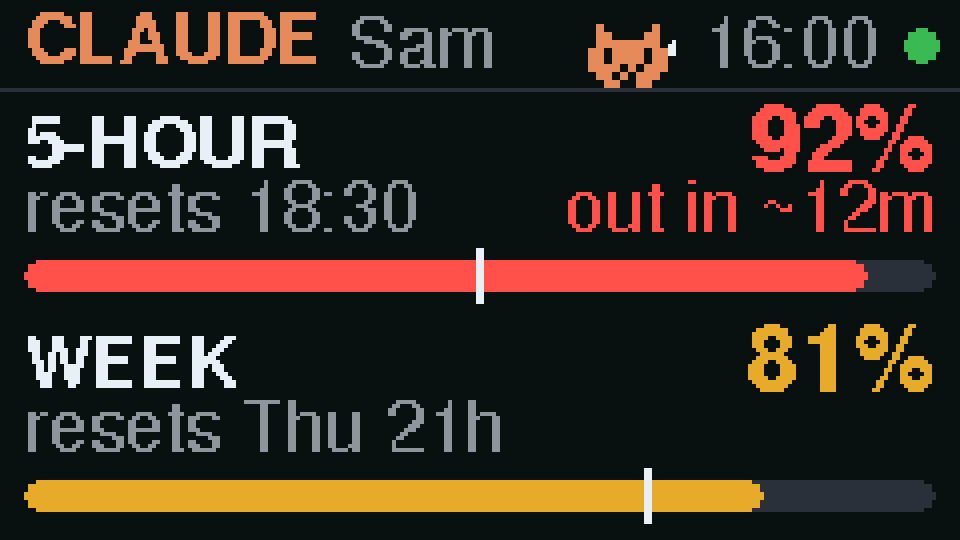
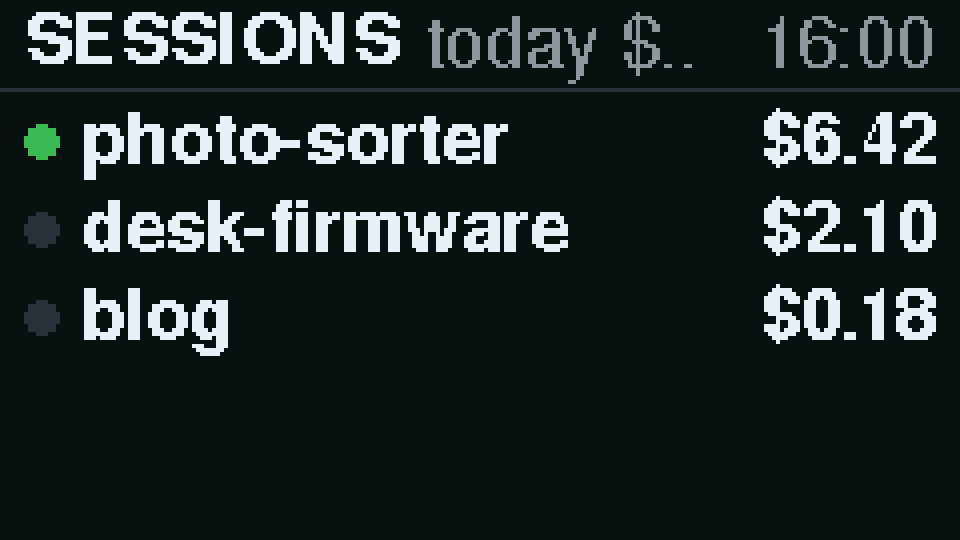
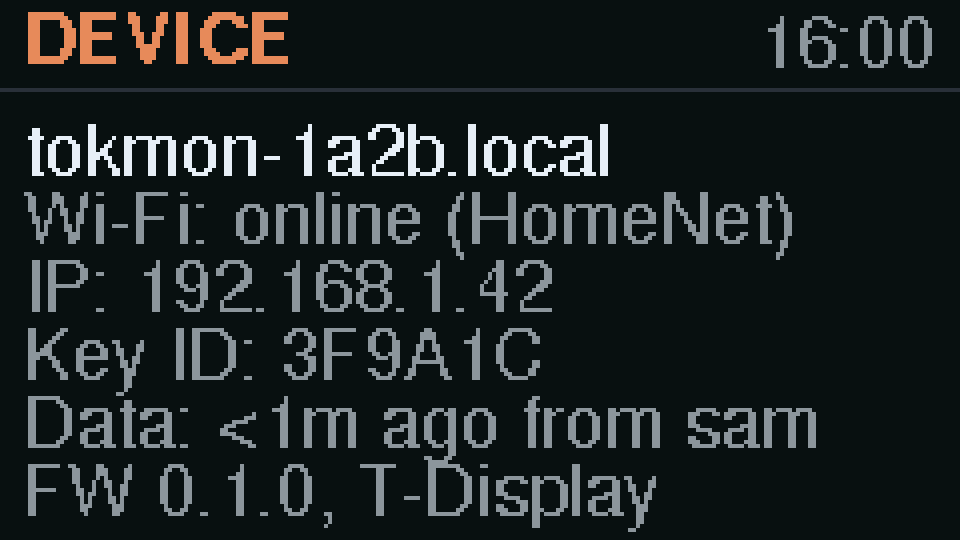
Overview and themes
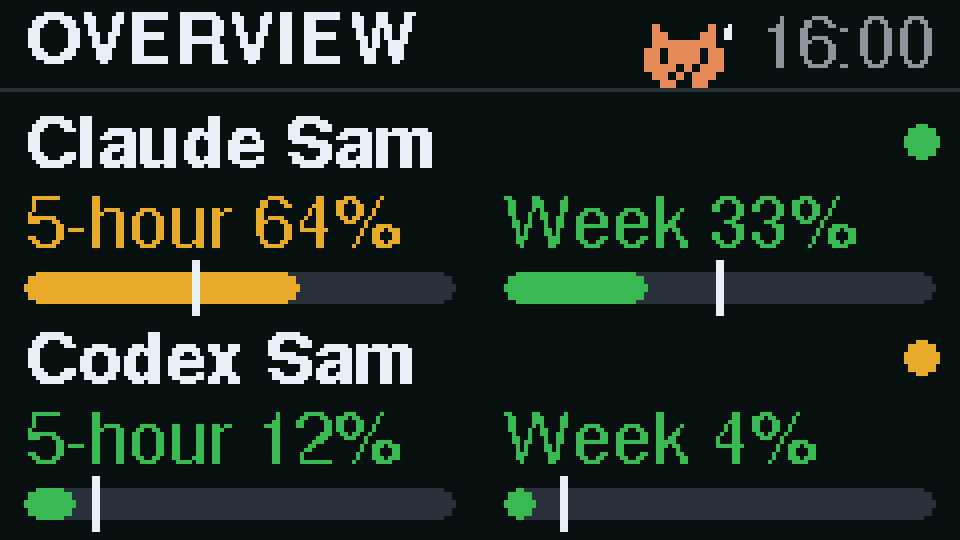
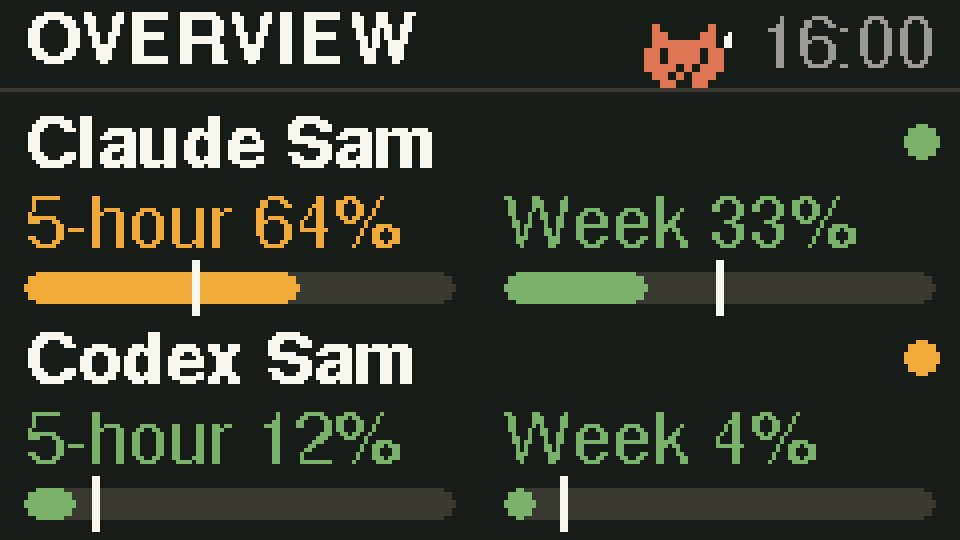
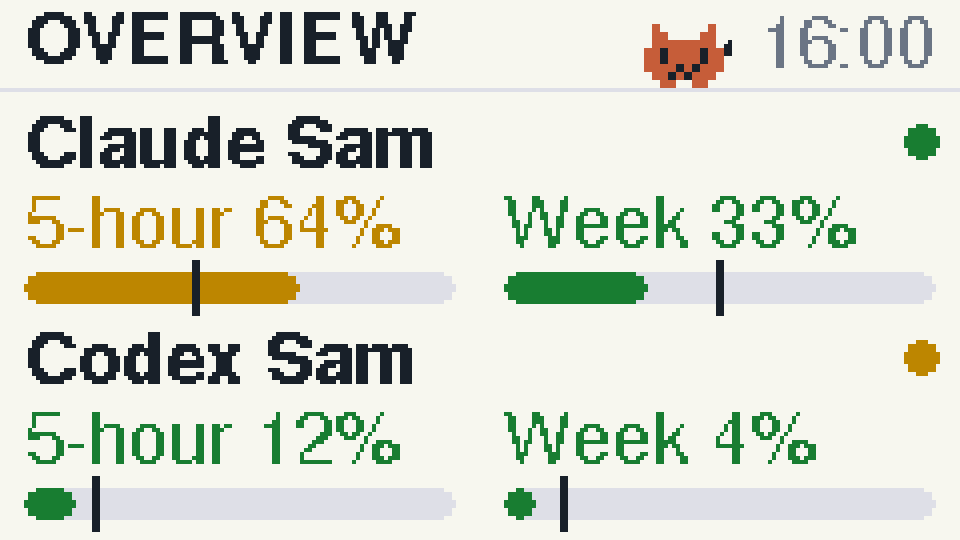
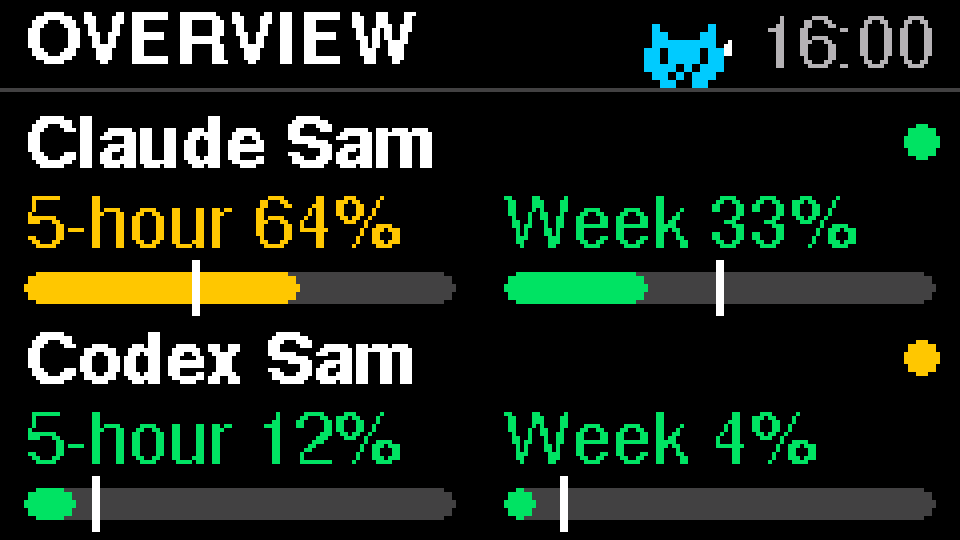
Overview puts up to two accounts on one screen, here Claude and Codex. There are four built-in themes, plus your own colours with a live preview in Settings.
The pet
A 12 by 11 pixel cat sits in the header. It sleeps after 30 quiet minutes and hops while a session is working. It sweats from 85%, or when you have less than an hour left. It cheers when a window resets.
You can turn it off in Settings.
 Asleep
 Calm
Calm Worried
 Cheering
The case
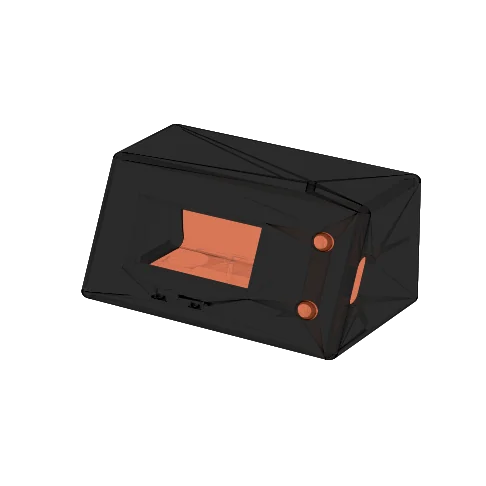
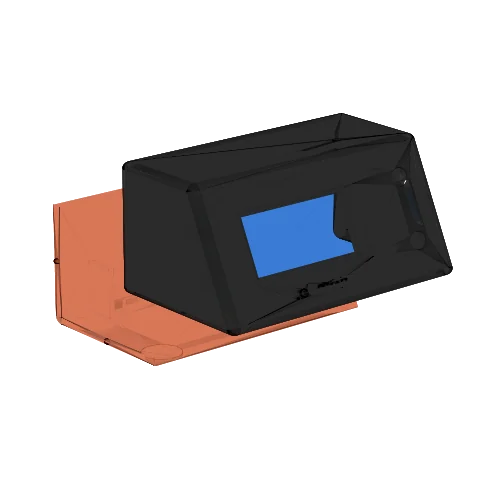
A printed desk wedge, 57 by 35 by 36 mm, that tilts the screen back 20 degrees. The board clips into the face, two printed caps press its buttons, and a back cover snaps in. A pinhole in the top reaches the reset button.
It is not final yet: it is still being fitted against the real board.
There are two back covers: one with weights for USB, and one that holds a small battery so the display can run on Wi-Fi.
The display is a prototype
It is not for sale yet. It is a LilyGO T-Display (an ESP32 board with a small screen) in a printed desk case, fed by the Mac app over USB or Wi-Fi.
| Board | LilyGO T-Display v1.1: ESP32, 1.14 inch 240x135 screen, two buttons, USB-C. |
|---|---|
| Case | Printed desk wedge, 57 x 35 x 36 mm, screen tilted back 20 degrees. Still being fitted. |
| Link | USB (power and data), or Wi-Fi with encrypted updates once a minute. |
| Power | USB, or an optional 503035 LiPo cell (about 500 mAh) in the battery cover. Battery life not measured yet. |
You don't need it: the Mac app works on its own.
Privacy
- Tokmon reads Claude Code's status line, which Claude Code documents for tools like this. If you turn it on, it also receives Claude Code's usage metrics (OpenTelemetry) on your own Mac. For Codex, it reads the logs Codex writes on your Mac.
- It never reads your Claude login, keychain or API keys. It sends nothing to Anthropic or anyone else. The only network traffic is to your display.
- To get status line data, it adds its command to Claude Code's
settings.json. Your own status line keeps working, a backup is saved, and Remove puts the old one back. - There is no account, no server and no analytics, in the app or on this site.
Download
cd ~/Downloads && echo "b9fd886d298b9bf167fad08a10c59ebe5a375f1bfd6c15439382813a45567b53 Tokmon-0.2.0.dmg" | shasum -a 256 -cInstall
Tokmon is not notarized by Apple (that needs a paid developer account), so macOS blocks it the first time. It needs macOS 14 or later and Claude Code 2.1.80 or later.
- Open the .dmg and drag Tokmon into Applications. Don't open it from the disk image: Claude Code needs to find it in the same place later. No admin password? Drag it into the Applications folder in your home folder instead (
~/Applications). - Open Tokmon. macOS says it could not check it for malware. Click Done (OK on macOS 14).
- Open System Settings > Privacy & Security, scroll down to "Tokmon was blocked", click Open Anyway, then Open Anyway again. This needs an admin password.
Or, without an admin password: skip steps 2 and 3. Run this in Terminal, then open Tokmon normally. Use ~/Applications/Tokmon.app if you put it there.
xattr -dr com.apple.quarantine /Applications/Tokmon.appFirst run
Tokmon appears in the menu bar and opens its setup guide. Click Connect Claude Code. This adds Tokmon's command to the status line in ~/.claude/settings.json. Your own status line keeps working and a backup is saved next to the file. Then send a message in Claude Code: your numbers appear after the reply. If nothing shows, restart that Claude Code session.
If you move Tokmon later, open it and click Repair in Settings > Sources.
Work Macs: if your Mac is managed, it may block apps that aren't notarized, and Open Anyway may be missing or need an admin. The Terminal command above often still works. If your company sets Claude Code's managed settings, they can override the status line and Tokmon will get no data.
FAQ
Do I need the display?
No. The Mac app works on its own.
Can I buy the display?
Not yet. It is a prototype, and the case is still being fitted.
I don't see it in the menu bar.
On a MacBook with a notch, a full menu bar can hide icons behind the notch. Quit a few menu bar apps, or hold Command and drag icons to make room. On macOS 26, also check System Settings > Menu Bar.
Does it count my use on claude.ai or the Claude desktop app?
Your plan limits are shared, so yes, but Tokmon only hears about them from Claude Code. Use elsewhere shows up at your next Claude Code reply.
Does Tokmon need my Claude login or API key?
No. It never reads them.
Is the spend figure my bill?
No. It is Claude Code's estimate at list prices. The Claude Console has the real figure.
Why does a new session say "after the first reply"?
Claude Code sends limits only after the first response of a session. Until then Tokmon can't tell a plan from API billing.
Windows or Linux?
Not today. The app is Mac only.
How do I remove it?
In Settings > Sources, click Remove next to Claude Code to put your old status line back. Quit Tokmon, delete it from Applications, and delete the ~/.tokmon folder.